Connect
Add Luma to Claude, ChatGPT or another assistant in a few clicks.
It takes about a minute. You need a Luma account; every plan includes MCP.
Claude
Section titled “Claude”- 1Add Luma AI
Add Luma AI to ClaudeClaude's connector window opens with the name and URL filled in. Click Add. - 2Connect
ConnectClick Connect next to Luma AI. - 3Sign in
Luma accountSign in with your Luma account.
To add it by hand, open Customize → Connectors in Claude and click Add. Enter Luma AI as the name and paste this URL:
https://agents.lumalabs.ai/mcpClaude on the web and Claude Desktop work the same way. On Claude’s Free plan you can add one custom connector.
ChatGPT
Section titled “ChatGPT”- 1Open Plugins
chatgpt.com/pluginsSearch for Luma AI. - 2Install
Install pluginThen sign in with your Luma account. - 3Use it
@Luma AIStart a Work chat, type @Luma AI and attach your product photo.
Claude Team and ChatGPT Business
Section titled “Claude Team and ChatGPT Business”On a team or enterprise account, your account owner or admin adds Luma AI once for the whole workspace. Then each person clicks Connect and signs in with their own Luma account.
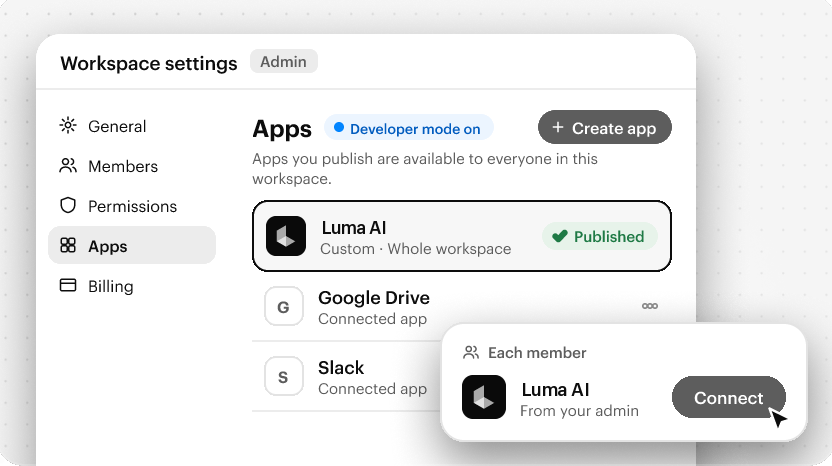 Add Luma AI for your Claude organizationAdmin settings, pre-filled
Other assistants
Section titled “Other assistants”Any app that can add a remote MCP server by URL can connect to https://agents.lumalabs.ai/mcp. Sign in with OAuth if the app supports it. Otherwise use an API key:
{ "mcpServers": { "luma": { "type": "http", "url": "https://agents.lumalabs.ai/mcp", "headers": { "Authorization": "Bearer ${LUMA_API_KEY}" } } }}