Prompting guide
A creator's field guide to prompting Uni-1 — workflow, templates, anatomy of a great prompt, reference images, and the cheat sheet of dos and don'ts.
Uni-1 doesn’t pattern-match keywords — it reasons through your intent before generating a single pixel. That changes how you prompt it.
- You don’t need prompt-engineering tricks or keyword stuffing.
- Describe what you want, not what you don’t (negative prompts aren’t supported).
- Think of yourself as a creative director giving a brief to a talented artist.
- The clearer your vision, the better the result — but loose, exploratory prompts work too.
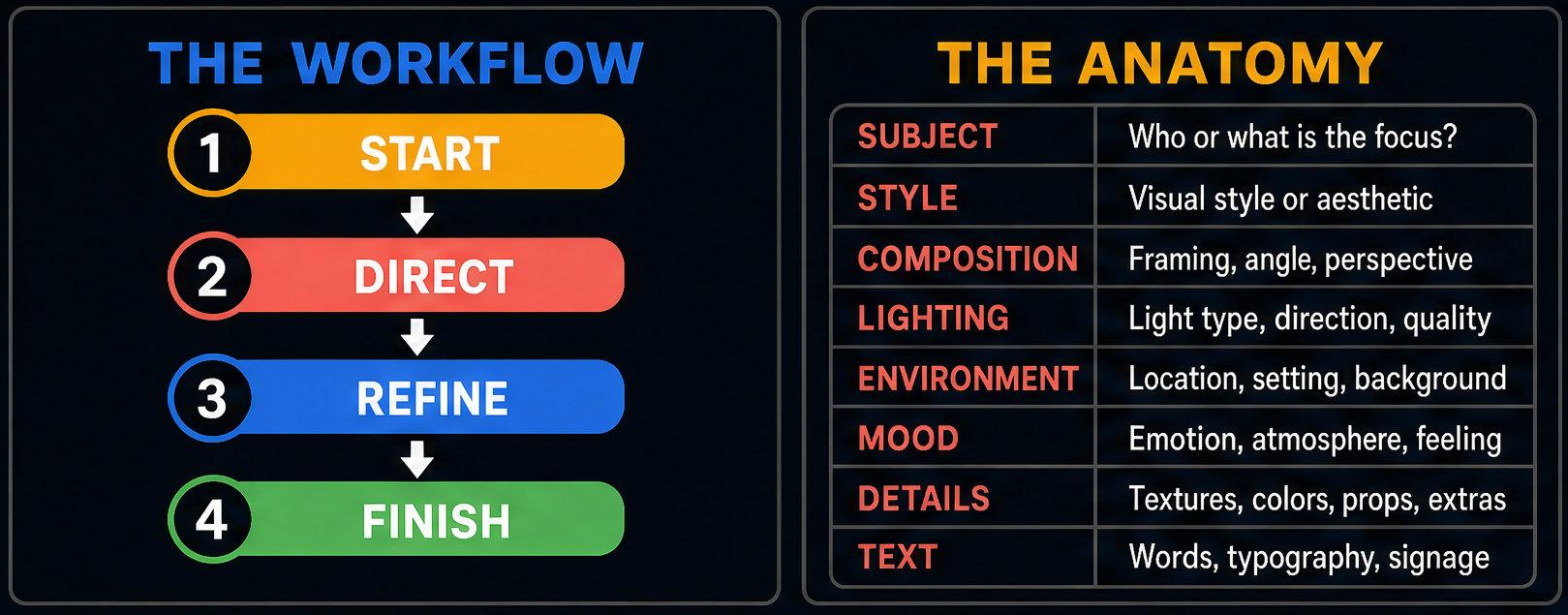
The workflow is: Start → Direct → Refine → Finish.
Create vs modify: the first decision
Section titled “Create vs modify: the first decision”Everything starts with one question: am I creating something new, or changing something that already exists?
- Create (
type: "image") generates a brand-new composition. It can be inspired by references but none of the input pixels are preserved. See Image generation. - Modify (
type: "image_edit") edits a specific input image. Composition is preserved unless you ask for a change. See Image editing.
Rule of thumb:
- “Make this photo look like nighttime” → Modify
- “Create a new scene in the style of this photo” → Create
- If the output should look like a version of your input → Modify
- If it should feel inspired but new → Create
Eight prompt templates
Section titled “Eight prompt templates”These eight templates cover roughly 90% of real-world use cases. Pick the one that matches your intent and fill in the bracketed slots.
1. The Fast Start
Section titled “1. The Fast Start”Use for exploration, first ideas, quick outputs.
Template:
A [subject], in [style], with [lighting], [camera/composition],[environment/background], mood: [emotion], details: [key specifics]Example:
A ceramic artist shaping a lopsided bowl, documentary photography style,soft window lighting, close-up shot, cluttered home studio background,mood: focused and quiet, details: clay-covered hands, imperfect texture,tools scattered on wooden table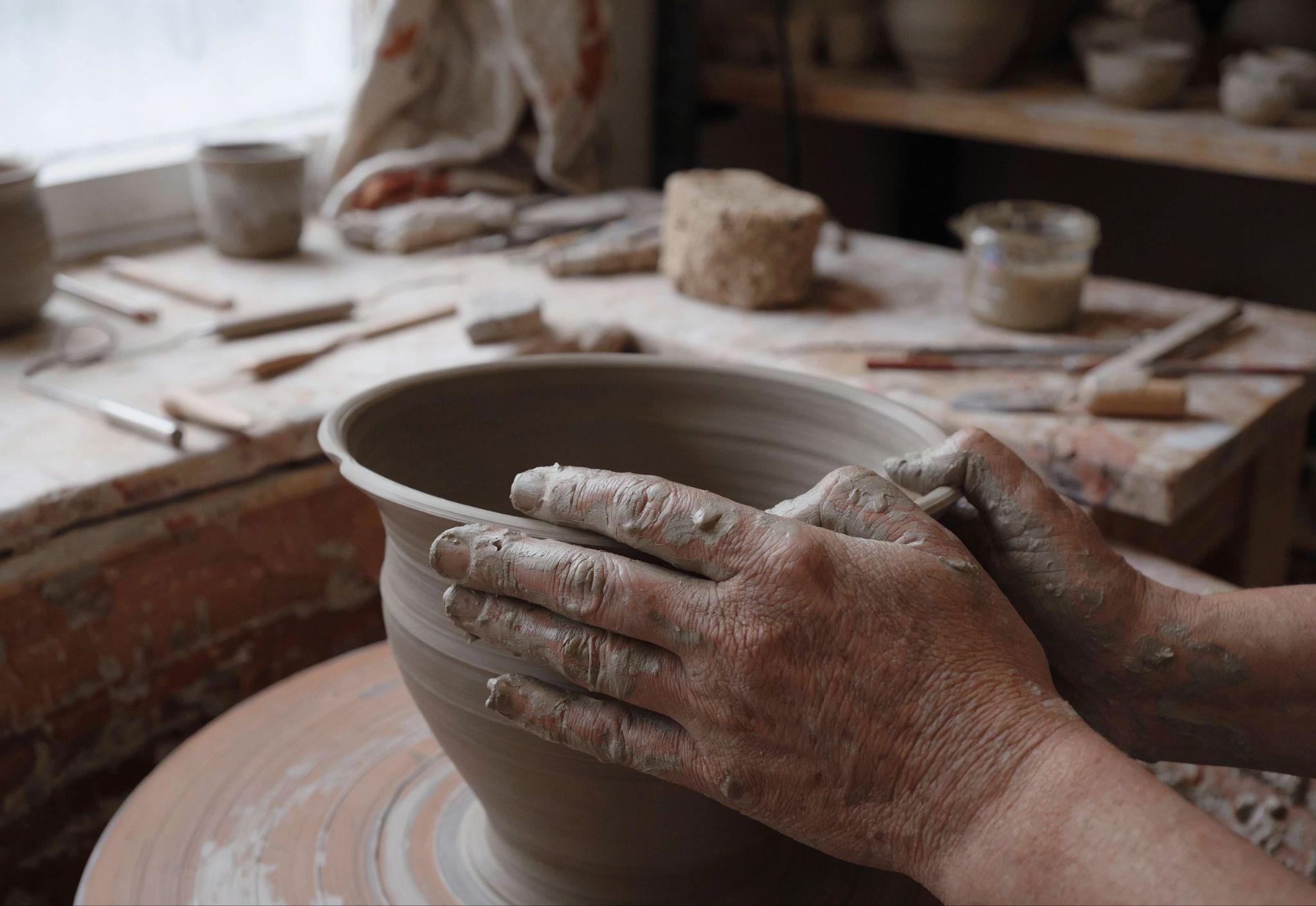
2. The Cinematic Control
Section titled “2. The Cinematic Control”Use when you need precise visual control — cinematic scenes, editorial work, portfolio pieces.
Template:
Subject: [who/what]Style: [editorial / documentary / fine art / etc.]Scene:- Environment: [where]- Time of day: [lighting conditions]- Weather/atmosphere: [mood elements]Camera:- Shot type: [close-up / wide / medium / aerial]- Lens: [wide angle / telephoto / macro]- Angle: [eye level / low angle / overhead]Details: [specific textures, colors, props]Mood: [overall feeling]Example:
Subject: A retired boxer sitting alone in an empty gymStyle: Documentary photography, gritty and honestScene:- Environment: Aging boxing gym with peeling paint- Time of day: Late afternoon, golden light through dusty windows- Weather/atmosphere: Quiet, contemplativeCamera:- Shot type: Medium shot, waist up- Lens: 50mm natural perspective- Angle: Slightly low, looking up at the subjectDetails: Worn leather gloves hanging nearby, sweat-stained bench, fadedchampionship posters on wallsMood: Dignified melancholy, the weight of a career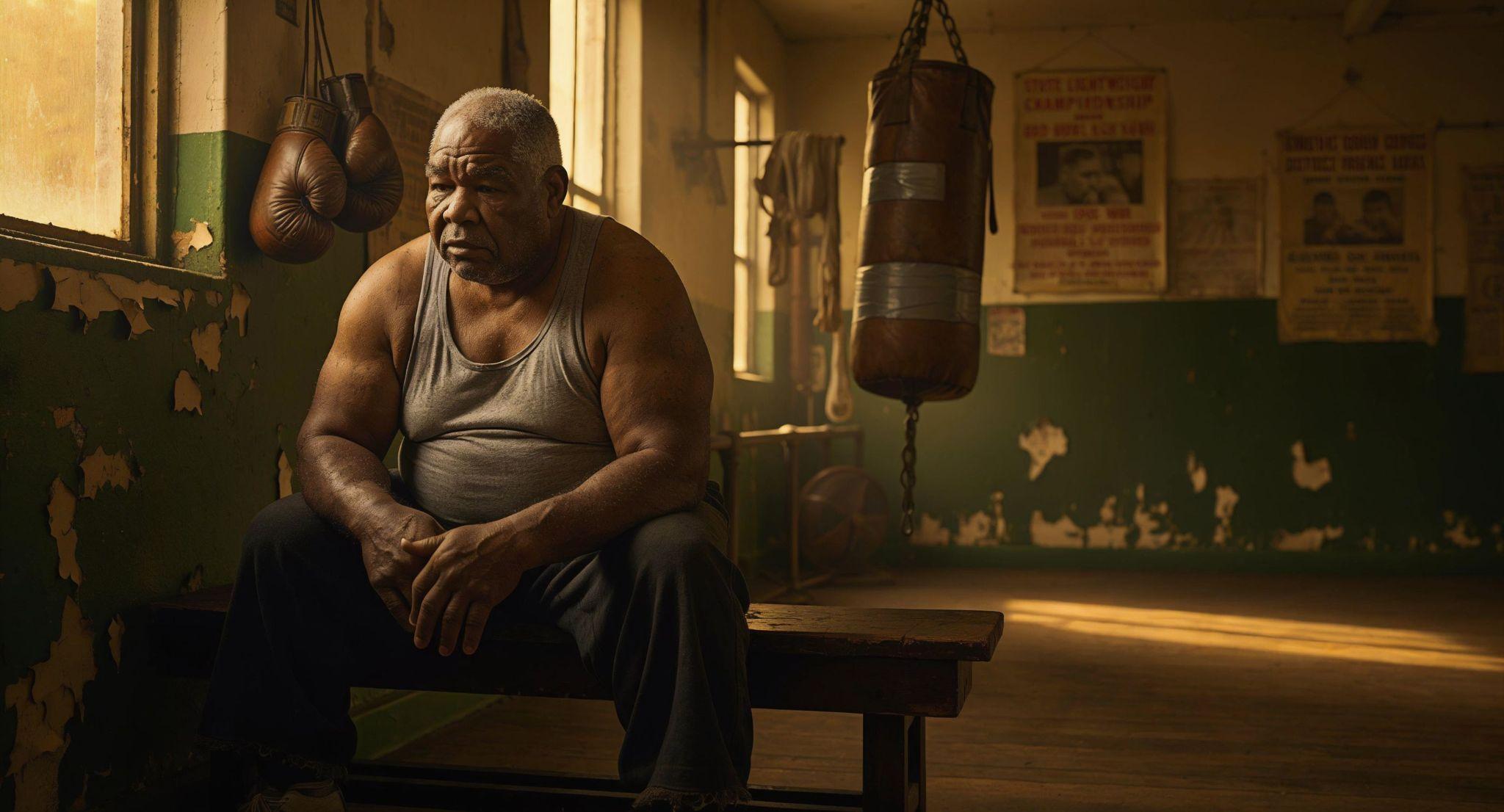
3. The Direct Edit
Section titled “3. The Direct Edit”Use to fix specific issues on an existing image. Be surgical — the more specific you are about what to change AND what to preserve, the better the edit.
Template:
Change [specific element] to [new version]. Keep everything else the same.Example:
Change the sky to a dramatic sunset with deep orange and purple clouds.Keep everything else the same.4. The Multi-Reference Fusion
Section titled “4. The Multi-Reference Fusion”Use to blend multiple visual ideas — a character in a specific style in a specific pose. Label each reference’s role explicitly so the model knows which aspect to pull from each.
Template:
IMAGE1 (STYLE): [description of style reference]IMAGE2 (CHARACTER): [description of character reference]IMAGE3 (COMPOSITION): [description of layout reference]
Create a [subject] that combines the visual style of IMAGE1, the characterfrom IMAGE2, in the composition/layout of IMAGE3. [Additional detailsabout the scene.]
Pass the references as image_ref entries in your request. Up to 9 references for type: "image", or 8 for type: "image_edit" (the source occupies its own slot). See image_ref for the parameter contract.
5. The Layout Control
Section titled “5. The Layout Control”Use for posters, magazine covers, infographics — anything with structured placement and text. Uni-1 is exceptionally good at text rendering; put exact strings in quotes.
Template:
Create a [format] with the following layout:- [Position 1]: [element description]- [Position 2]: [element description]- [Position 3]: [element description]Text: "[exact text to render]"Style: [overall aesthetic]Example:
Create a magazine cover with the following layout:- Top third: Title "WILDLIGHT" in bold serif font- Center: Portrait of a woman wearing an oversized vintage denim jacket- Bottom: Subtitle "The Future of Desert Fashion — Spring 2026"Style: High-fashion editorial, muted earth tones, natural lighting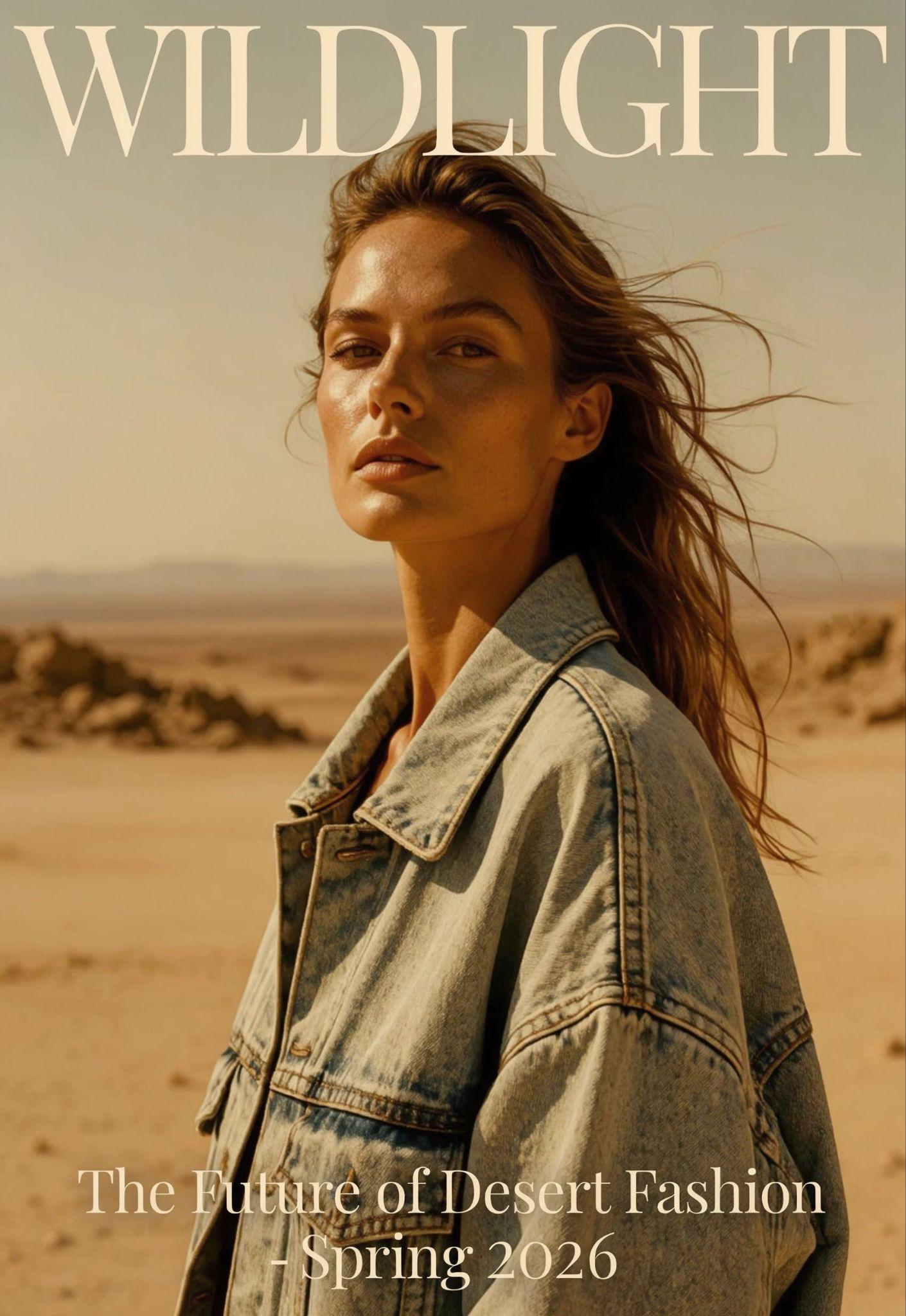
6. The Storyboard Generator
Section titled “6. The Storyboard Generator”Use for multi-panel sequences with a consistent character across panels.
Template:
Create a [N]-panel storyboard showing: Panel 1: [scene]. Panel 2: [scene].Panel 3: [scene]. Consistent character throughout. Style: [aesthetic].Example:
Create a 4-panel storyboard showing: Panel 1: A detective enters a dimlylit bar. Panel 2: She slides a photo across the counter to the bartender.Panel 3: The bartender recognizes the person and looks nervous. Panel 4:Close-up of the detective's knowing smile. Consistent characterthroughout: woman in her 40s, sharp features, dark trenchcoat. Style:Film noir, high contrast black and white.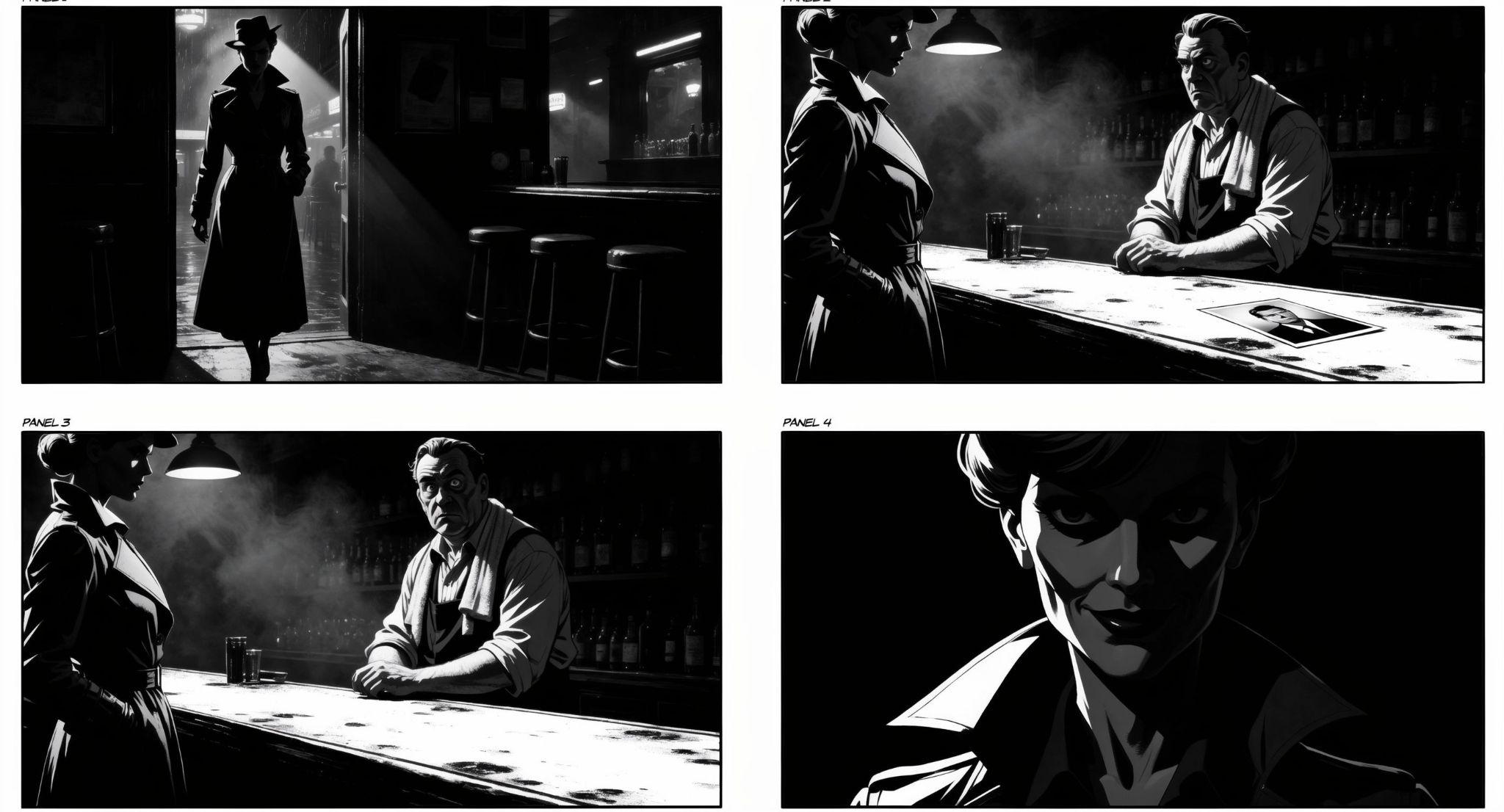
7. The Loose / Creative mode
Section titled “7. The Loose / Creative mode”Use when you want to explore and be surprised. Uni-1’s reasoning engine can interpret abstract concepts and moods.
Template:
[Vibe or feeling]. [A few evocative words or an abstract concept.]Example:
The feeling of waking up in a foreign city for the first time. Morninglight. Unfamiliar rooftops. Coffee steam. Possibility.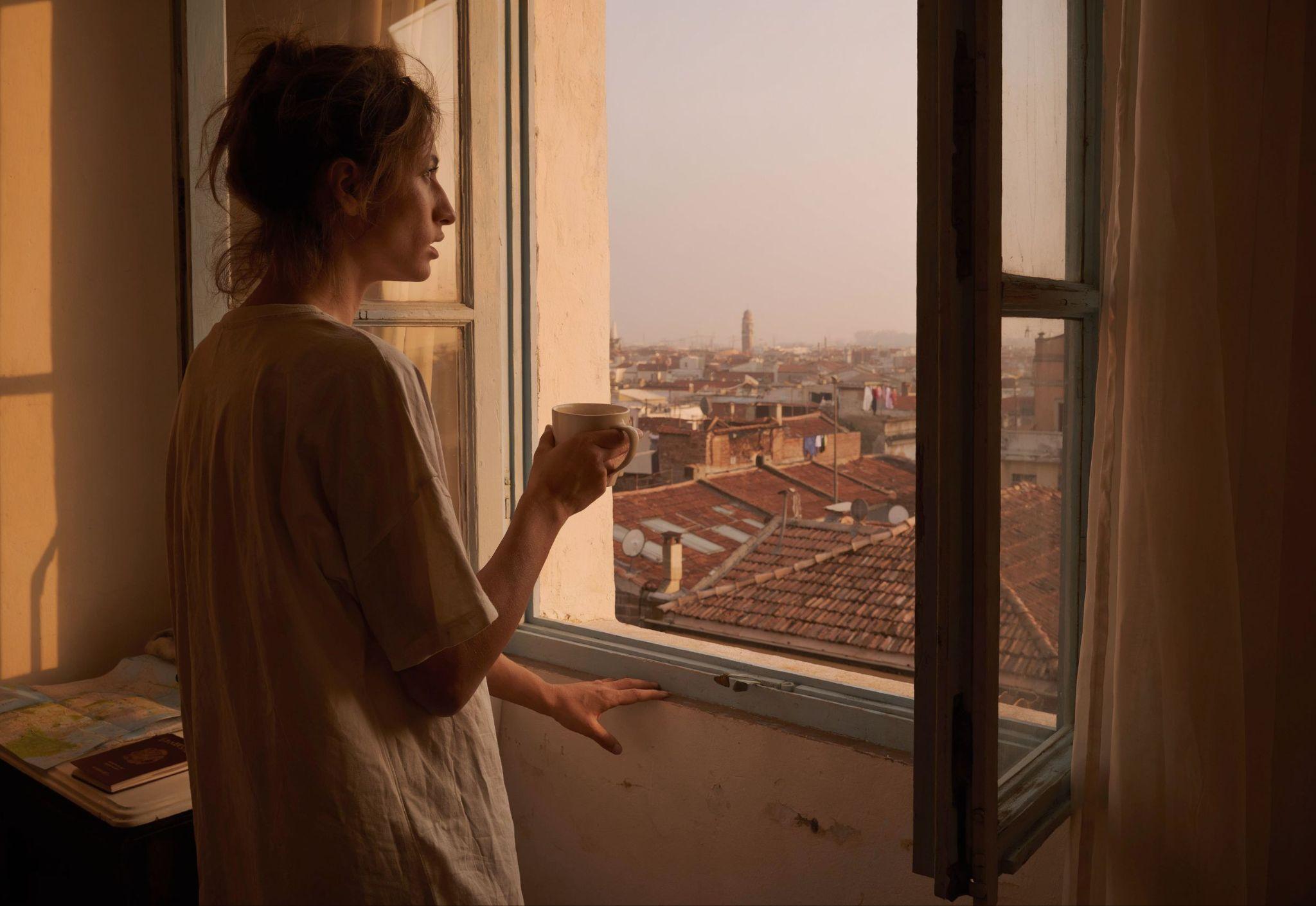
8. The Structured JSON
Section titled “8. The Structured JSON”Use for maximum precision and reproducibility. Great for batch work where every field needs to be tweakable.
Template:
{ "subject": "...", "style": "...", "composition": "...", "lighting": "...", "color_palette": "...", "mood": "...", "details": ["...", "...", "..."], "text_elements": ["..."], "aspect_ratio": "..."}Serialize the object into your prompt field — Uni-1 reads structured prose well, and JSON is just one shape of structured prose.
The anatomy of a great prompt
Section titled “The anatomy of a great prompt”Most prompts can be assembled from eight building blocks. Cover the ones that matter for your shot; skip the rest.
| Element | What it does | Example |
|---|---|---|
| Subject | Who or what is in the image | ”A street musician playing violin” |
| Style | Visual aesthetic or medium | ”Oil painting”, “35mm film photography”, “Studio Ghibli” |
| Composition | Camera angle, framing | ”Close-up portrait”, “aerial view”, “rule of thirds” |
| Lighting | Light quality and direction | ”Golden hour”, “dramatic side lighting”, “soft diffused” |
| Environment | Where the scene takes place | ”Rainy Tokyo alley”, “sunlit meadow”, “brutalist interior” |
| Mood | Emotional tone | ”Nostalgic”, “tense”, “joyful and chaotic” |
| Details | Specific textures, props, colors | ”Worn leather jacket”, “turquoise accent wall” |
| Text | Any words to render in the image | Put the exact string in "quotes" |
Recommended prompt lengths
Section titled “Recommended prompt lengths”| Task | Length | Why |
|---|---|---|
| Text-to-image | 80–250 words | Enough detail to guide, not so much it conflicts |
| Reference-guided | 100–300 words | More words needed to describe how references should blend |
| Modify/Edit | 30–100 words | Be surgical — describe only the change |
Weak vs strong prompts
Section titled “Weak vs strong prompts”Weak:
cat in forestStrong:
A tabby cat sitting on a mossy log in an ancient forest at golden hour,soft dappled light filtering through oak leaves, painterly impressioniststyle, warm amber tones, peaceful and serene moodWeak:
product photo of sneakerStrong:
A single white running sneaker on a concrete surface, outdoor urbanenvironment, clean commercial photography, soft natural shadow, minimalistand modern feel, shallow depth of fieldWeak:
make a posterStrong:
Create a movie poster for a sci-fi thriller. Title: "SIGNAL" in largedistressed metallic font at the top. Central image: a lone astronautstanding before a massive alien structure on a barren planet. Colorpalette: deep navy, burnt orange, silver. Mood: awe and isolation.Tagline at bottom: "They weren't listening. They were waiting."Working with reference images
Section titled “Working with reference images”Uni-1 supports up to 9 reference images in Create mode and 8 in Modify mode (the source image occupies the ninth slot). Each reference can play a role:
| Role | What it controls | When to use |
|---|---|---|
| Style | Visual aesthetic, rendering approach | ”Make it look like THIS” |
| Character | Identity, face, body, clothing | Keeping a character consistent across scenes |
| Composition | Layout, spatial arrangement | Matching a specific framing or structure |
| Color palette | Colors and tones | Matching brand colors or a mood |
| Lighting | Light direction and quality | Recreating a specific lighting setup |
| Texture | Surface qualities and materials | Matching specific material finishes |
| Mood | Overall emotional feeling | Capturing an atmosphere |
Character consistency workflow
Section titled “Character consistency workflow”- Generate a clean, front-facing reference image of your character.
- Reuse it as
IMAGE1 (CHARACTER)in every subsequent scene. - Keep the label identical across prompts.
- Add scene-specific details in the text prompt.
- The character stays consistent; the world around them changes.
See image_ref for the parameter contract and base64 vs URL handling.
Five core workflows
Section titled “Five core workflows”How to combine the templates above into a finished image.
Workflow 1: Idea → final image
Section titled “Workflow 1: Idea → final image”- Start with a Fast Start prompt (loose, exploratory).
- Pick the best result.
- Modify to refine details (lighting, color, specific elements).
- Modify again for final polish.
Workflow 2: Reference-driven creation
Section titled “Workflow 2: Reference-driven creation”- Gather 1–3 reference images (style, character, composition).
- Write a Multi-Reference Fusion prompt.
- Generate.
- Modify to fine-tune.
Workflow 3: Fix & polish
Section titled “Workflow 3: Fix & polish”- Start with any image (generated or uploaded).
- Use Direct Edit prompts to fix specific issues.
- Iterate one change at a time — better than trying to fix everything at once.
Workflow 4: Precision composition
Section titled “Workflow 4: Precision composition”- Sketch or describe your exact layout.
- Use Layout Control or Structured JSON.
- Upload the sketch as a reference if available.
- Generate and refine.
Workflow 5: Exploration → lock → iterate
Section titled “Workflow 5: Exploration → lock → iterate”- Start loose (Creative Mode) — generate many options.
- Find a direction you love — “lock” it by saving.
- Switch to Cinematic Control for precise versions.
- Use Modify for final variations.
Quick rules (cheat sheet)
Section titled “Quick rules (cheat sheet)”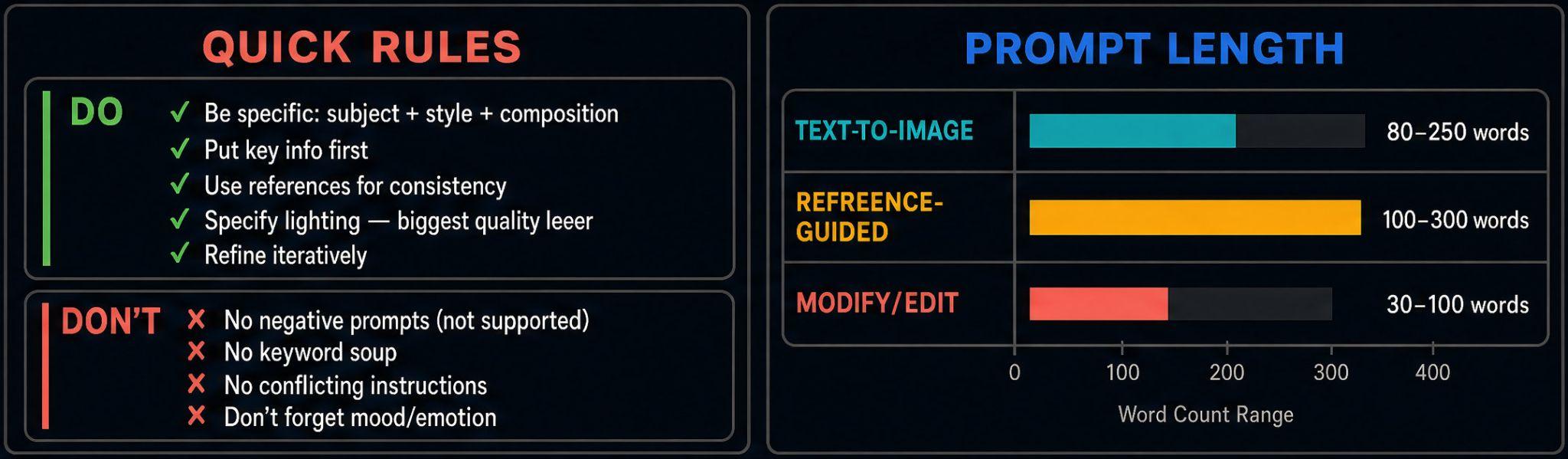
What Uni-1 is especially great at
Section titled “What Uni-1 is especially great at”- Spatial reasoning — complex multi-subject scenes with correct object placement.
- Text rendering — readable, stylized text in images (posters, signs, UI mockups).
- Character consistency — same character across multiple generations using references.
- Infographics & data visualization — charts, diagrams, informational layouts.
- Multi-panel layouts — storyboards, comic panels, sequential art.
- Cultural styles — manga, ukiyo-e, film noir, editorial, and 76+ other styles.
- Photo restoration — bringing old or damaged photos back to life.
- Product photography — clean commercial shots with precise control.
- Complex compositions — multiple characters, detailed environments, layered scenes.
Aspect ratios
Section titled “Aspect ratios”Pick the right canvas for the content. If you don’t pass aspect_ratio, Uni-1 chooses one to fit the prompt.
| Ratio | Orientation | Best for |
|---|---|---|
1:1 | Square | Social posts, avatars, icons |
16:9 | Wide landscape | YouTube thumbnails, presentations, cinematic |
9:16 | Tall portrait | Instagram Stories, TikTok, phone wallpapers |
3:2 | Classic landscape | Photography, prints, editorial |
2:3 | Classic portrait | Portraits, book covers, posters |
2:1 | Ultrawide | Panoramic scenes, banners |
1:2 | Ultratall | Vertical banners, signage |
3:1 | Extreme wide | Website headers, cinematic letterbox |
1:3 | Extreme tall | Vertical scrolls, tall infographics |
Pro tips from the community
Section titled “Pro tips from the community”- “Think of Uni-1 as a chess master, not a slot machine — it plans before it generates.”
- “I stopped writing ‘perfect’ prompts. Now I just explain what I want, and Uni-1 figures it out.”
- “The biggest unlock was using references. A single style reference image is worth a thousand words of prompt description.”
- “For product shots, describe the ENVIRONMENT and LIGHTING more than the product itself — Uni-1 already understands objects well.”
- “Don’t restart when you get something close. Use Modify to push the last 20%.”
- “Web search grounding is incredible for real-world subjects — landmarks, celebrities, specific products. Toggle it on.”
- “Multi-panel prompts are a superpower. You can create entire storyboards in a single generation.”
- “If you’re coming from Midjourney, ditch the style keywords. Write like you’re briefing a photographer instead.”
Next steps
Section titled “Next steps”- Quickstart — run your first generation in five minutes.
- Image generation — every parameter you just learned about:
prompt,aspect_ratio,style,image_ref,web_search. - Image editing — apply these prompts to modify existing images.
- Models —
uni-1vsuni-1-maxcapabilities and what each costs per image. - Uni-1 Showcase — see what creators are making with Uni-1.